> ## Documentation Index
> Fetch the complete documentation index at: https://developers.entri.com/llms.txt
> Use this file to discover all available pages before exploring further.
# Sell Modal Integration
> Unified Flow — embedded domain purchase modal via connectDomain/purchaseDomain, including Sell-specific config keys.
## Integration Guide
### **Step 1: Configure Entri**
To set up Sell, first follow the [**Getting Started guide**](/getting-started).
Be sure to use [**dynamic configuration variables**](/connect/configuration#dynamic-configuration-variables) if your DNS records change based on the domain purchased.
### **Step 2: Select your Sell registrar partner**
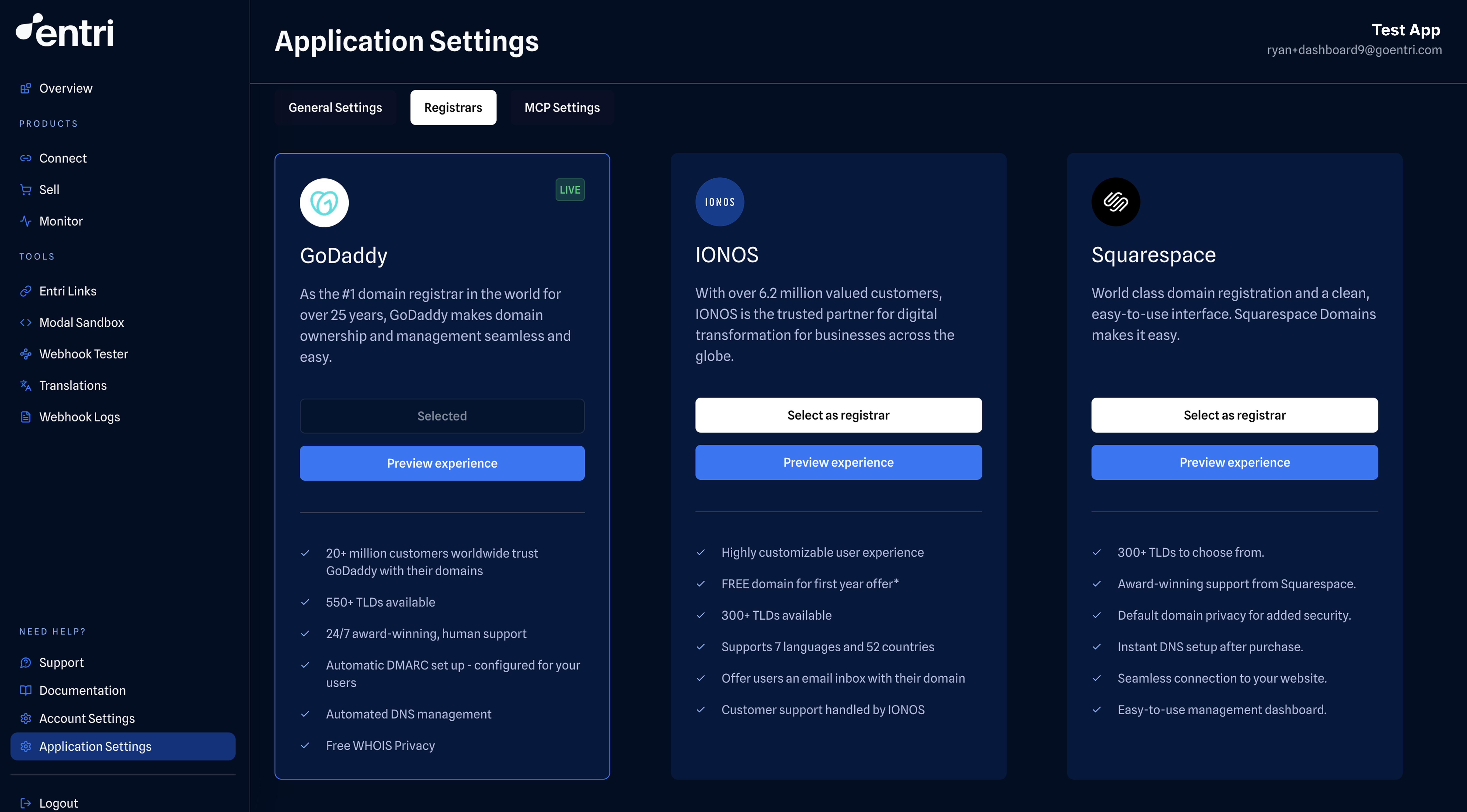
To start selling domains, you’ll need to select your Sell registrar partner. By default, no partner is selected in your account.
Each partner will provide a different checkout experience, and a different set of functionality (top level domains, languages, regional support etc.). To learn more about each partner, please visit the Sell Registrars page or the Entri dashboard.
After logging into the Entri Dashboard, visit the Application Settings page and the Sell Registrars tab. On this tab you can preview each Sell experience, learn more about the functionality offered by each partner, and select your registrar for each of your `ApplicationIDs`.
### **Step 3: Define your return URLs (optional)**
By default, Entri Sell redirects the user back to your platform if they complete or exit the purchase flow, on the same page that they were referred from. But, if you’d like to specify a different return URL, you can define this:
* **`successCallbackUrl`**: The URL to which the user will be redirected after a successful domain purchase.
* **`exitCallbackUrl`**: The URL to which the user will be redirected if they select Close (X) before completing the purchase flow.
See more info at [**Basic Configuration**](#basic-configuration).
### **Step 4: Call purchaseDomain()**
Call the `purchaseDomain` method with your configuration object to open the Entri Purchase Domain Flow.
```html theme={"system"}
```
### **Configuration object specifications**
More information about the properties within the object that you’ll pass to the `entri.purchaseDomain` method.
#### **Basic Configuration**
* **`applicationId`** (string): A unique identifier for your application, available in the Entri dashboard. **Example:** **`"12345"`**
* **`token`** (string): A JWT token used for authentication and authorization. **Example:** **`"JWT_TOKEN"`**
* **`successCallbackUrl`** (string) **(optional)**: The URL to which the user will be redirected after a successful domain purchase. The purchased domain will be added as a **`domain`** query string parameter to the success callback URL. **Example:** **`"https://myapplication.com/success"`** (redirects to **`https://myapplication.com/success?domain=mydomain.com`**)
* **`exitCallbackUrl`** (string) **(optional)**: The URL to which the user will be redirected if they select Close (X) before completing the purchase flow. **Example:** **`"https://myapplication.com/exit"`**
* **`disableConnect`** (boolean) **(optional)**: When `true`, the flow only performs the domain purchase — no DNS records are configured for the purchased domain. Useful when your app sets up DNS out-of-band. **Default:** `false`.
* **`apiLink`** (string) **(optional)**: Overrides the base API endpoint the modal calls. Most integrations should leave this unset; use it only when directed by your Entri account manager (for example, to target a regional endpoint).
* **`whiteLabel.sell.flowTarget`** (string) **(optional)**: The target location where the purchase flow window will be displayed. If `_blank` is specified, the flow will open in a new browser tab. **Default:** `_parent`.
#### **DNS Records**
* **`dnsRecords`** (array of objects): An array containing DNS record objects. These records will applied after a successful domain purchase.
* **Example:**
```json theme={"system"}
[
{ "type": "A", "host": "@", "value": "93.184.216.34", "ttl": 300 },
{ "type": "A", "host": "aipv4", "value": "93.184.216.34", "ttl": 300 }
]
```
### Webhook Notifications
When your users go through the Sell flow, Entri will send you webhook notifications to update you on their progress and the status of their purchase. To learn more about the configuration and webhook notifications, please visit our [webhook documentation page](/webhooks-overview).
#### **Other Settings**
* **`freeDomain`** (boolean): Indicates whether the domain price should be set to \$0. Should only be used on paid users at the customer’s platform. **Example:** **`true`**
* Supported by **both IONOS and Squarespace**, enabled the same way. IONOS offers free domains across its full TLD catalog; Squarespace supports a limited set of TLDs. Reach out to your account manager for the current eligible TLD list on Squarespace and for access.
```js JavaScript theme={"system"}
fetch("https://api.goentri.com/token", {
method: "POST",
body: JSON.stringify({
// These values come from the Entri dashboard
applicationId: "12345",
secret: "12345-67890",
freeDomain: true,
}),
})
.then((response) => response.json())
.then((data) => {
console.log("Success:", data); // { "auth_token": "exampletoken..." }
// Save the token in a variable or state manager for later use
});
```
* **`locale`** (string): The language/locale to be used in the domain purchase flow. **Example:** **`"en"`**
#### **Advanced Security Settings for `freeDomain`**
For additional security, you can explicitly set `freeDomain:false` or `freeDomain:true`when you create the JWT. This way, the user gets explicit authorization for running the free domain flow\.If the client tries to use a config that doesn’t match the one hashed in the JWT, it will return an error. Here’s an example of how to use this when generating the JWT:
| **Property** | **Type** | **Required** | **Default** | **Description** |
| ---------------- | -------- | ------------ | ----------- | ---------------------------------------------------------------------------------------- |
| **`freeDomain`** | boolean | No | N/A | When set to **`true`**, it will only allow Entri to run under the **`freeDomain`** flow. |
```js JavaScript theme={"system"}
fetch("https://api.goentri.com/token", {
method: "POST",
body: JSON.stringify({
// These values come from the Entri dashboard
applicationId: "12345",
secret: "12345-67890",
freeDomain: true,
}),
})
.then((response) => response.json())
.then((data) => {
console.log("Success:", data); // { "auth_token": "exampletoken..." }
// Save the token in a variable or state manager for later use
});
```
#### **Mail Upsell**
Mail Upsell is currently only available when using **IONOS** as the domain registrar.
By default, Entri adds an extra step to the domain purchase flow. This step offers users the opportunity to purchase mail inboxes as an upsell. A mailbox is optional, meaning users can manually skip the mail offering if they are not interested. This property enhances the domain purchase experience by allowing you to promote additional services seamlessly, providing more value to users while keeping the flow non-intrusive. You can turn this feature off by setting `disableMailUpsell: true` in your configuration.
Example Configuration:
```json theme={"system"}
{
"applicationId": "exampleapp",
"token": "JWT_TOKEN",
"disableMailUpsell": true,
"successCallbackUrl": "https://[your_success_callback_url].com",
"exitCallbackUrl": "https://[your_exit_callback_url].com",
"dnsRecords": [
{ "type": "A", "host": "@", "value": "93.184.216.34", "ttl": 300 }
],
"whiteLabel": {
"logo": "https://cdn.yourpartner.com/logo.svg",
"theme": {
"fg": "#ffffff",
"bg": "#012939",
"fgSecondary": "#ffffff",
"bgSecondary": "#012939"
}
}
}
```
#### Post purchase asynchronous DNS configurations
Entri offers the ability for you to perform DNS configuration updates after the Sell flow has taken place. To learn more about how this feature can be used, please refer to the [Asynchronous DNS configurations](/sell/sdk#asynchronous-dns-configurations-entri-sell-only) section.
## Check Domain Availability
This endpoint checks whether a domain is available for registration before initiating the **Entri Sell** flow. It returns the availability status along with a reason why the domain is not available, helping you determine whether to proceed with the purchase process.
### Check Domain Availability as HTTP endpoint
```txt theme={"system"}
GET https://api.goentri.com/checkdomainavailability
Header "Authorization: [JWT authorization]"
Header "applicationId: [yourApplicationID]"
```
#### Headers
| Header | Required? | Description |
| ------------- | --------- | -------------------------------------------- |
| Authorization | Yes | Bearer token (JWT) for authentication. |
| applicationId | Yes | Your Application ID as set in the dashboard. |
#### Query Parameters
| Parameter | Type | Required? | Description |
| --------- | ------ | --------- | ---------------------------------------------------------- |
| domain | string | Yes | Fully qualified domain name to check (e.g. `example.com`). |
#### Sample Response
```json theme={"system"}
{
"domain": "example.com",
"available": true,
"reason": "AVAILABLE", // or "UNSUPPORTED_TLD", "ERROR", "UNAVAILABLE"
"checkedAt": "2025-05-15T17:20:00Z"
}
```
## Sharing Links API — Entri Sell
```
POST https://api.goentri.com/sharing/sell
Header "Authorization: [JWT authorization]"
Header "applicationId: [yourApplicationID]"
```
#### Request body
```JSON JSON theme={"system"}
{
"applicationId":"yourApplicationID",
"config":{
"prefilledDomain": "mydomain.com",
"dnsRecords":[
{
"type":"CNAME",
"host":"www",
"value":"test.com",
"ttl":300
}
]
}
}
//All the rest of possible configuration options, see https://developers.entri.com/connect/configuration for more details.
```
#### Successful response (200 status)
```JSON JSON theme={"system"}
{
// If a custom Sharing Link domain is configured, "link" will reflect that domain.
// See: https://developers.entri.com/connect/shared-links#sharing-link-custom-domain
"link": "https://app.goentri.com/share/dd339cf05f2646539e79251f8e62f0c5",
"job_id": "9c128fe4-63cd-4ec4-9ae8-8a9d06c0e6de"
}
```
 ### **Step 3: Define your return URLs (optional)**
By default, Entri Sell redirects the user back to your platform if they complete or exit the purchase flow, on the same page that they were referred from. But, if you’d like to specify a different return URL, you can define this:
* **`successCallbackUrl`**: The URL to which the user will be redirected after a successful domain purchase.
* **`exitCallbackUrl`**: The URL to which the user will be redirected if they select Close (X) before completing the purchase flow.
See more info at [**Basic Configuration**](#basic-configuration).
### **Step 4: Call purchaseDomain()**
Call the `purchaseDomain` method with your configuration object to open the Entri Purchase Domain Flow.
```html theme={"system"}
```
### **Configuration object specifications**
More information about the properties within the object that you’ll pass to the `entri.purchaseDomain` method.
#### **Basic Configuration**
* **`applicationId`** (string): A unique identifier for your application, available in the Entri dashboard. **Example:** **`"12345"`**
* **`token`** (string): A JWT token used for authentication and authorization. **Example:** **`"JWT_TOKEN"`**
* **`successCallbackUrl`** (string) **(optional)**: The URL to which the user will be redirected after a successful domain purchase. The purchased domain will be added as a **`domain`** query string parameter to the success callback URL. **Example:** **`"https://myapplication.com/success"`** (redirects to **`https://myapplication.com/success?domain=mydomain.com`**)
* **`exitCallbackUrl`** (string) **(optional)**: The URL to which the user will be redirected if they select Close (X) before completing the purchase flow. **Example:** **`"https://myapplication.com/exit"`**
* **`disableConnect`** (boolean) **(optional)**: When `true`, the flow only performs the domain purchase — no DNS records are configured for the purchased domain. Useful when your app sets up DNS out-of-band. **Default:** `false`.
* **`apiLink`** (string) **(optional)**: Overrides the base API endpoint the modal calls. Most integrations should leave this unset; use it only when directed by your Entri account manager (for example, to target a regional endpoint).
* **`whiteLabel.sell.flowTarget`** (string) **(optional)**: The target location where the purchase flow window will be displayed. If `_blank` is specified, the flow will open in a new browser tab. **Default:** `_parent`.
#### **DNS Records**
* **`dnsRecords`** (array of objects): An array containing DNS record objects. These records will applied after a successful domain purchase.
* **Example:**
```json theme={"system"}
[
{ "type": "A", "host": "@", "value": "93.184.216.34", "ttl": 300 },
{ "type": "A", "host": "aipv4", "value": "93.184.216.34", "ttl": 300 }
]
```
### Webhook Notifications
When your users go through the Sell flow, Entri will send you webhook notifications to update you on their progress and the status of their purchase. To learn more about the configuration and webhook notifications, please visit our [webhook documentation page](/webhooks-overview).
#### **Other Settings**
* **`freeDomain`** (boolean): Indicates whether the domain price should be set to \$0. Should only be used on paid users at the customer’s platform. **Example:** **`true`**
* Supported by **both IONOS and Squarespace**, enabled the same way. IONOS offers free domains across its full TLD catalog; Squarespace supports a limited set of TLDs. Reach out to your account manager for the current eligible TLD list on Squarespace and for access.
```js JavaScript theme={"system"}
fetch("https://api.goentri.com/token", {
method: "POST",
body: JSON.stringify({
// These values come from the Entri dashboard
applicationId: "12345",
secret: "12345-67890",
freeDomain: true,
}),
})
.then((response) => response.json())
.then((data) => {
console.log("Success:", data); // { "auth_token": "exampletoken..." }
// Save the token in a variable or state manager for later use
});
```
* **`locale`** (string): The language/locale to be used in the domain purchase flow. **Example:** **`"en"`**
#### **Advanced Security Settings for `freeDomain`**
For additional security, you can explicitly set `freeDomain:false` or `freeDomain:true`when you create the JWT. This way, the user gets explicit authorization for running the free domain flow\.If the client tries to use a config that doesn’t match the one hashed in the JWT, it will return an error. Here’s an example of how to use this when generating the JWT:
| **Property** | **Type** | **Required** | **Default** | **Description** |
| ---------------- | -------- | ------------ | ----------- | ---------------------------------------------------------------------------------------- |
| **`freeDomain`** | boolean | No | N/A | When set to **`true`**, it will only allow Entri to run under the **`freeDomain`** flow. |
```js JavaScript theme={"system"}
fetch("https://api.goentri.com/token", {
method: "POST",
body: JSON.stringify({
// These values come from the Entri dashboard
applicationId: "12345",
secret: "12345-67890",
freeDomain: true,
}),
})
.then((response) => response.json())
.then((data) => {
console.log("Success:", data); // { "auth_token": "exampletoken..." }
// Save the token in a variable or state manager for later use
});
```
#### **Mail Upsell**
### **Step 3: Define your return URLs (optional)**
By default, Entri Sell redirects the user back to your platform if they complete or exit the purchase flow, on the same page that they were referred from. But, if you’d like to specify a different return URL, you can define this:
* **`successCallbackUrl`**: The URL to which the user will be redirected after a successful domain purchase.
* **`exitCallbackUrl`**: The URL to which the user will be redirected if they select Close (X) before completing the purchase flow.
See more info at [**Basic Configuration**](#basic-configuration).
### **Step 4: Call purchaseDomain()**
Call the `purchaseDomain` method with your configuration object to open the Entri Purchase Domain Flow.
```html theme={"system"}
```
### **Configuration object specifications**
More information about the properties within the object that you’ll pass to the `entri.purchaseDomain` method.
#### **Basic Configuration**
* **`applicationId`** (string): A unique identifier for your application, available in the Entri dashboard. **Example:** **`"12345"`**
* **`token`** (string): A JWT token used for authentication and authorization. **Example:** **`"JWT_TOKEN"`**
* **`successCallbackUrl`** (string) **(optional)**: The URL to which the user will be redirected after a successful domain purchase. The purchased domain will be added as a **`domain`** query string parameter to the success callback URL. **Example:** **`"https://myapplication.com/success"`** (redirects to **`https://myapplication.com/success?domain=mydomain.com`**)
* **`exitCallbackUrl`** (string) **(optional)**: The URL to which the user will be redirected if they select Close (X) before completing the purchase flow. **Example:** **`"https://myapplication.com/exit"`**
* **`disableConnect`** (boolean) **(optional)**: When `true`, the flow only performs the domain purchase — no DNS records are configured for the purchased domain. Useful when your app sets up DNS out-of-band. **Default:** `false`.
* **`apiLink`** (string) **(optional)**: Overrides the base API endpoint the modal calls. Most integrations should leave this unset; use it only when directed by your Entri account manager (for example, to target a regional endpoint).
* **`whiteLabel.sell.flowTarget`** (string) **(optional)**: The target location where the purchase flow window will be displayed. If `_blank` is specified, the flow will open in a new browser tab. **Default:** `_parent`.
#### **DNS Records**
* **`dnsRecords`** (array of objects): An array containing DNS record objects. These records will applied after a successful domain purchase.
* **Example:**
```json theme={"system"}
[
{ "type": "A", "host": "@", "value": "93.184.216.34", "ttl": 300 },
{ "type": "A", "host": "aipv4", "value": "93.184.216.34", "ttl": 300 }
]
```
### Webhook Notifications
When your users go through the Sell flow, Entri will send you webhook notifications to update you on their progress and the status of their purchase. To learn more about the configuration and webhook notifications, please visit our [webhook documentation page](/webhooks-overview).
#### **Other Settings**
* **`freeDomain`** (boolean): Indicates whether the domain price should be set to \$0. Should only be used on paid users at the customer’s platform. **Example:** **`true`**
* Supported by **both IONOS and Squarespace**, enabled the same way. IONOS offers free domains across its full TLD catalog; Squarespace supports a limited set of TLDs. Reach out to your account manager for the current eligible TLD list on Squarespace and for access.
```js JavaScript theme={"system"}
fetch("https://api.goentri.com/token", {
method: "POST",
body: JSON.stringify({
// These values come from the Entri dashboard
applicationId: "12345",
secret: "12345-67890",
freeDomain: true,
}),
})
.then((response) => response.json())
.then((data) => {
console.log("Success:", data); // { "auth_token": "exampletoken..." }
// Save the token in a variable or state manager for later use
});
```
* **`locale`** (string): The language/locale to be used in the domain purchase flow. **Example:** **`"en"`**
#### **Advanced Security Settings for `freeDomain`**
For additional security, you can explicitly set `freeDomain:false` or `freeDomain:true`when you create the JWT. This way, the user gets explicit authorization for running the free domain flow\.If the client tries to use a config that doesn’t match the one hashed in the JWT, it will return an error. Here’s an example of how to use this when generating the JWT:
| **Property** | **Type** | **Required** | **Default** | **Description** |
| ---------------- | -------- | ------------ | ----------- | ---------------------------------------------------------------------------------------- |
| **`freeDomain`** | boolean | No | N/A | When set to **`true`**, it will only allow Entri to run under the **`freeDomain`** flow. |
```js JavaScript theme={"system"}
fetch("https://api.goentri.com/token", {
method: "POST",
body: JSON.stringify({
// These values come from the Entri dashboard
applicationId: "12345",
secret: "12345-67890",
freeDomain: true,
}),
})
.then((response) => response.json())
.then((data) => {
console.log("Success:", data); // { "auth_token": "exampletoken..." }
// Save the token in a variable or state manager for later use
});
```
#### **Mail Upsell**